Existing Clients: (414) 228-5009
Sales Inquiries: (414) 261-6754

Milwaukee IT Services Company
Serving businesses across Wisconsin
River Run is your Milwaukee-based IT services company, delivering reliable, functional, and secure technology support that helps your business grow with confidence through proven processes and a dedicated team you can count on.
meet the Wisconsin IT team you can rely on

Scott Casey
Business Line Leader

Paul Riedl, Jr.
Chief Executive Officer

John Limbach
Chief Operating Officer

Jon Gregg
President

Rich Brownlee
CTO

Dawn Johnson
vCIO

Jasmine Ward
Business Line Leader

Jason Thompson
vCIO

David Bullis
vCIO

Brandon Kwon
Controller

Joe Bitter
Account Executive

Jolene Pieper
Account Executive

Marc Padron
Account Executive
Why Businesses Choose Us as Their IT Services Company in Milwaukee
Proven Track Record
The fact is that we have had over 30 years of success supporting more than 300 managed clients.
EOS (Traction)-Driven Process
We constantly refine and improve how we support your business, ensuring we get better at what we do over time.
Private Ownership
You get to work with a stable, local IT services company in Milwaukee you can count on, not a faceless conglomerate.
Unique Team Approach
Leverage the strength of a skilled, full-scale team - backed by the personal service of a dedicated group that truly knows your business.
Do Not Take Our Word For It
They manage to remain budget-friendly while providing comprehensive IT solutions that meet and exceed expectations. They prioritize cost-effective solutions without compromising quality, making them a trustworthy choice for businesses in need of dependable and affordable services.

Chief Financial Officer
Financial Services
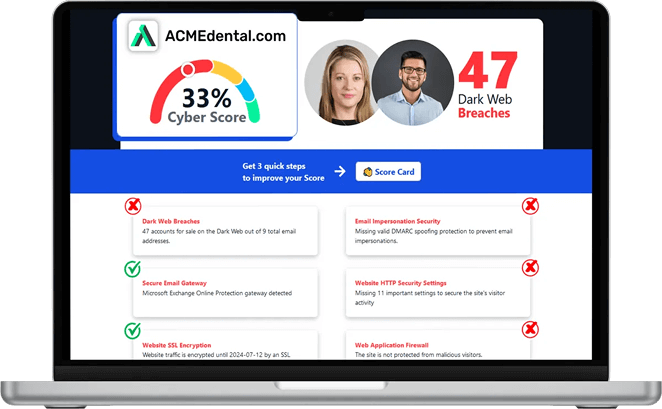
Think you are secure? Get your Cyber Security Score!
Get it in 30 seconds!
Is Your Technology Holding You Back?
As Your IT Services Company in Milwaukee, We Are Here to Make Sure Your IT Works, Day In and Day Out

Paul Riedl, Jr.
Chief Executive Officer
Frustrated by recurring issues, slow response times, or systems that never seem fully reliable? You are not alone. Many businesses struggle with underperforming IT, which just means they have not found the right IT services company in Milwaukee.
What is it costing you?
Inefficient technology impacts productivity, security, and growth. If you are constantly dealing with downtime, unclear plans, or unreliable support, it is time for a change. River Run provides the scale, structure, and experience to solve these problems permanently.
Call (414) 261-6754 today or fill out the form below to schedule your appointment.
Schedule an Appointment Today
What We provide as your IT Services Company in Milwaukee

Full-service technology management that keeps your systems reliable, secure, and aligned.
Proactive support that prevents downtime and keeps your environment fully optimized.
Your data stays safe, accessible, and secure for your team through your preferred cloud platform.
Comprehensive protection that guards against threats and maintains business continuity.
Custom data backup strategies that minimize risk and support fast, complete recovery.
Strategic oversight to align your technology investments with long-term business goals.
What Clients Say About Us
Peace of Mind at an Affordable Flat Monthly Fee
5 stars for Hardik! He came and helped with our company & went above and beyond. He was patient, knowledgeable and when new problems came up, he would help us right away. Cannot recommend Hardik enough - so grateful for his help.

OLIVIA GABA
Wisconsin
A Trustworthy, Transparent Partner
Ian called and took care of my computer issues. He modified the login process so that we could bypass other issues which were plaguing my system constantly. In other issues which came up today, Shawn was a life saver to get me back in the game quickly. Both technicians were highly professional and made things easy for even a baby boomer such as myself. Our company uses River Run and would highly recommend them to anyone with IT needs.

RON BACKHAUS
River Rock
One of the Best Companies Around
My experience with River Run has been outstanding. Everyone has a high level of professionalism and expertise. I am most impressed with their field technicians. It is obvious River Run goes to great extents to hire excellent people. To me the technicians are the face of the company. They are extremely knowledgeable and are a pleasure to work with.

DALE D
Wisconsin
The More You Know...
Explore insights from our times as a leading IT services company in Milwaukee, direct from our experienced team, all about technology trends, cybersecurity threats, IT planning, and the operational strategies that help our 300+ clients stay up and running.

Heatwave Tech Tips: Preventing Overheating and Extending Device Lifespan
Summer sunshine is great for beach days and barbecues. But it’s not so great for your tech. Whether you’re working from a sunny patio or traveling with your devices, rising temperatures can quietly ta... ...more
Cybersecurity
July 11, 2025•5 min read

How AI Is Supercharging Cyber Threats This Summer
Long days and warm nights make summer the perfect time to unplug and unwind. But while you’re kicking back, cybercriminals are ramping up. And this year, they’ve got a powerful sidekick: artificial in... ...more
Cybersecurity
July 03, 2025•4 min read

Is Your Data Safe? Backup and Recovery Tips for a Safer Summer
Summer is all about travel, sunshine, and stepping away from the daily grind. But while you’re making memories, your devices may be more vulnerable than you realize. From poolside spills and sandy sma... ...more
IT Services
June 17, 2025•4 min read
Frequently Asked Questions
Does the monthly service arrangement include new hardware purchases?
No. Your monthly fee covers our services - monitoring, maintenance, and support - not the cost of new equipment or software. Any new purchases are separate, but we will help you find the right solutions at the best value.
How do we get in touch when we need help?
You can contact us by phone (414) 261-6754, email, or through our online contact us. We respond promptly and keep communication straightforward.
Will I lose control over our systems if we work with your IT company?
No. You maintain full decision-making authority. We make sure you are kept informed, and welcome you to take a more active role in the management process if that is what you want. We even provide you with a full catalogue of your IT assets at the end of your first month so that you know exactly what your IT looks like. Beyond that, we handle the technical work, but you choose how involved you want to be and make the final calls on policies or changes.
Is it safe to give your IT company access to our network and data?
The undeniable reality is that any outside access carries some risk, but we follow strict security protocols and use industry-standard protections. We are the rare third-party that increases your security, rather than increasing your risk. Our approach reduces your overall exposure compared to managing everything internally without specialized expertise. We also help to mitigate (and, ideally, entirely eliminate) any internal risks posed by uninformed or careless staff members.
Will working with your IT company mean we have to upgrade all our hardware and software?
Not if it is not necessary; in the first month of service we will assess your IT environment to make sure your hardware and software are up to date and functioning at the level required for security and productivity. Anything that is not sufficient will be upgraded.
How much do I need to be involved once we partner with your IT company?
You set your level of involvement. Some clients prefer regular input, others let us handle everything behind the scenes. This could be a monthly review meeting or a quarterly strategy update. Whatever the interval, we provide periodic reviews so you always know what is happening without needing to manage daily IT tasks yourself.
Take Control of Your Technology
With over 30 years of experience and 300+ managed clients, River Run is the IT support company in Glendale for businesses that need reliable, scalable technology support. Our team is ready to help you eliminate downtime, strengthen security, and improve operations through structured, strategic service delivery.
Call (414) 261-6754 today or click the button below to schedule your appointment. Let's take IT off your mind for good.
